

What changes for you
This stays the same
What you do and how you do it:
- Your expense claims, receipts and approvals
- Your data
- Your card
- Your login details
This looks different
The name, the colours and the design:
- The emails you receive from the system
- The PDFs you download
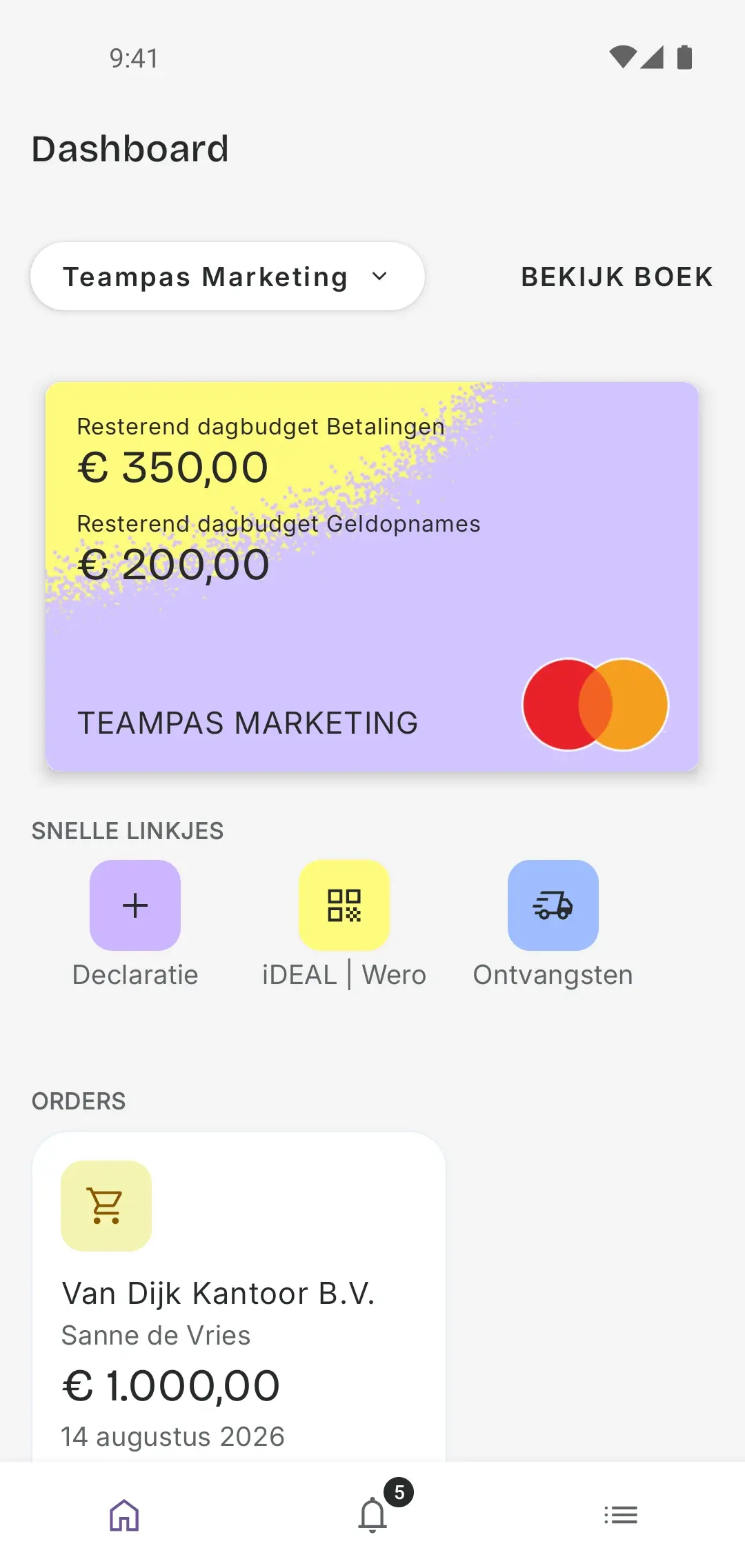
- The app on your phone: new name and new icon
This is in a different place
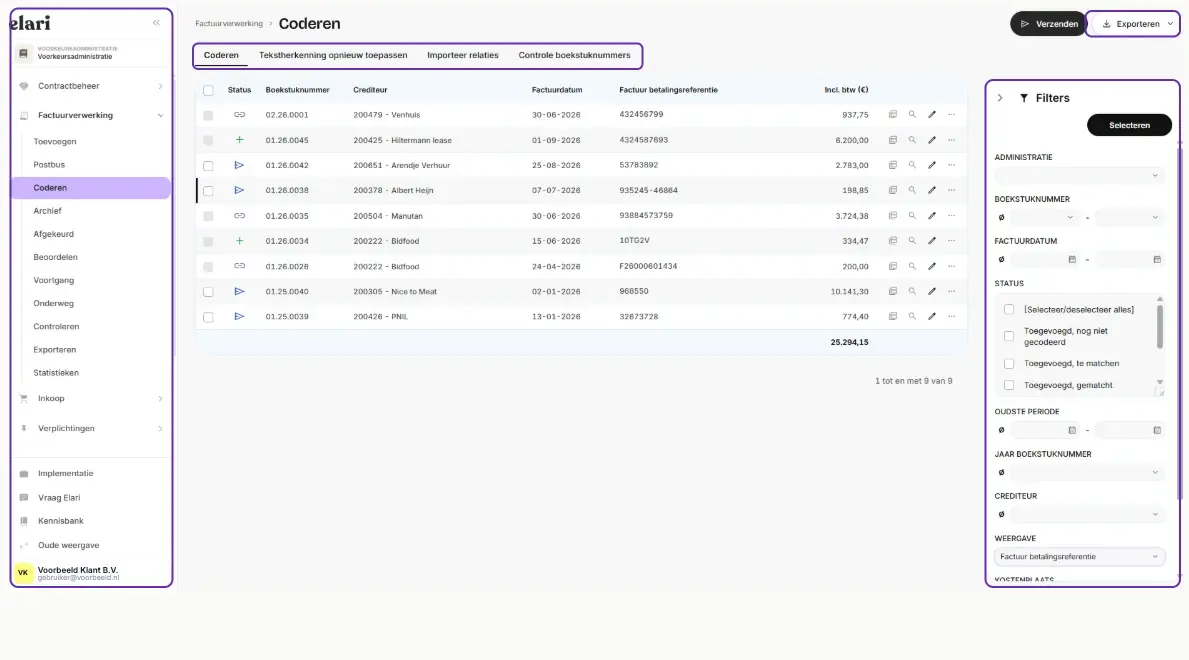
Do you also work in the web version on your computer?
- The menu is on the left, the top bar disappears
- The filters are on the right
- A number of toolbar buttons are now in tabs
The app gets a new name, a new icon and a new look, but the steps you take stay the same.
One thing
What you do yourself

One thing: on 1 October the app gets an update, and it is mandatory. If automatic updates are switched on for your phone or tablet, it happens by itself. If not, the app will ask for it. If you cannot update apps yourself, the administrator or the IT department in your own organisation arranges it.
After the update, the app appears on your device under the name Elari and with the new icon. Good to know: if you search for "Spend Cloud" after that, you will no longer find the app.
Beyond that, you do not have to set up, install or transfer anything.
Your card keeps working

Do you have a Spend Cloud Card? It keeps working. You do not have to exchange it and nothing changes about your card details.
From 1 October, Spend Cloud Cards are called Elari Cards. From then on only Elari Cards are issued, so you may have an Elari Card while a colleague still has a Spend Cloud Card. They work exactly the same.

Take a look right now
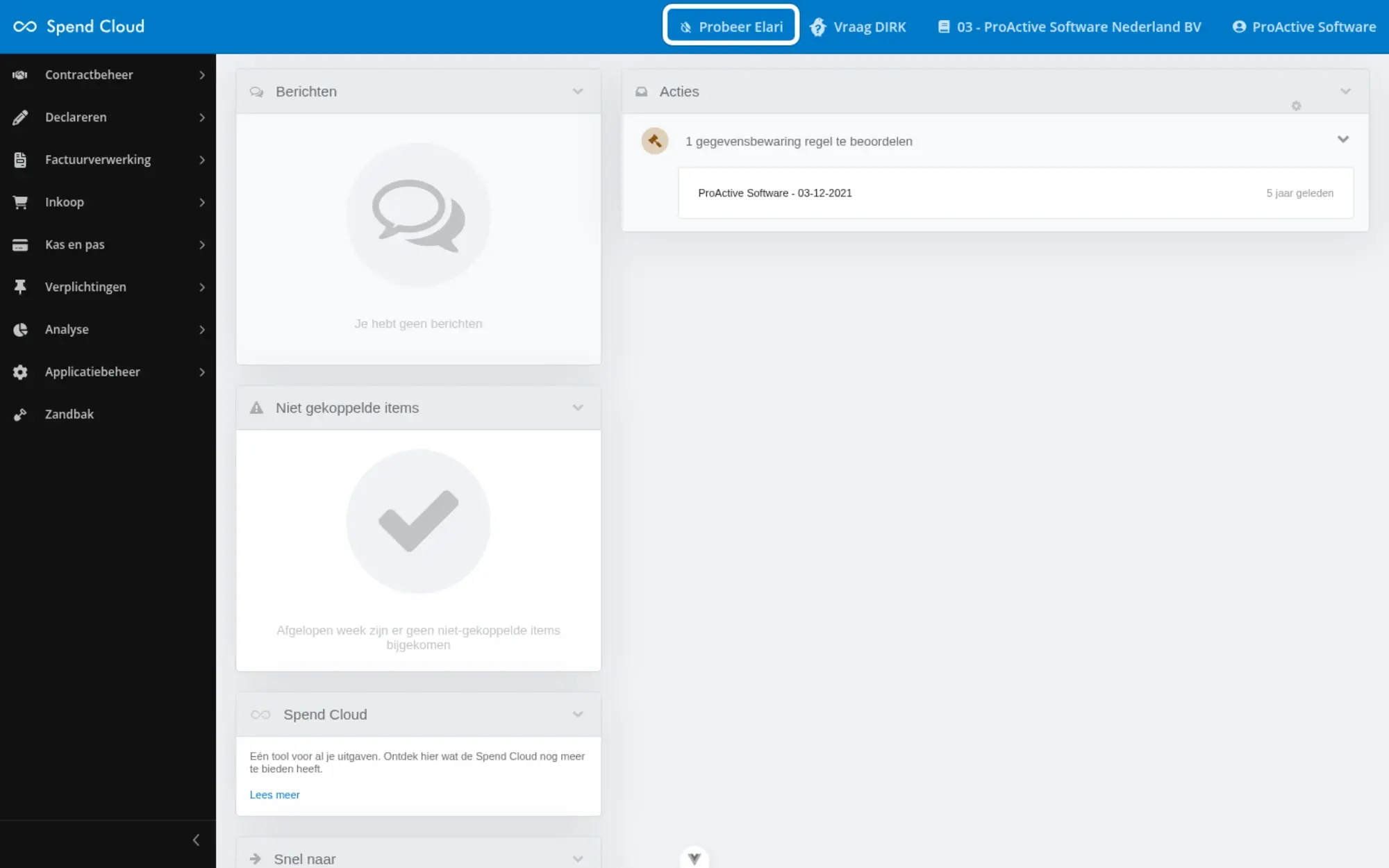
From 8 September, the web version on your computer shows the 'Try Elari' button at the top. One click and you see the new view, just for yourself. You can go back via 'Old view', which you will find at the bottom of the menu on the left in Elari.
Feel free to leave it on, then you will already be used to it on 1 October. And you cannot break anything. On 1 October the choice disappears and everyone works in Elari.
There is no switch in the app. There you will see Elari on 1 October, all at once.
What happens when
8 September
You can switch the new view on and off yourself in the web version
1 October
Elari goes live. The app gets a mandatory update and the old view disappears
Why a new name
Until now we had two: Visma | ProActive for the company and Spend Cloud for the software. From 1 October, Elari is the name for both.
We already had a good name. So we made a better one. The same people, the same product, the same approach, and finally a name that fits. And we remain part of Visma.
What Elari stands for
Light, clarity and direction. Elari is built from elevate and light. Together they stand for lightening: bringing clarity as well as making a load lighter. That is exactly the role we want to play.
Spend your time wisely.
Behind that line is what we have been working on for years: keeping the time you spend on admin as small as possible, so more is left for the people who matter.

More information and FAQ
What exactly changes and what stays the same? All questions and answers are in the Knowledge Base.

Do you have any other questions?
Ask the administrator of the relevant department within your own organisation.
Come across something in Elari that is not right? Report it to the administrator within your own organisation. Mention where you came across it and what went wrong, preferably with a screenshot.